> ## Documentation Index
> Fetch the complete documentation index at: https://docs.wundertest.ai/llms.txt
> Use this file to discover all available pages before exploring further.
# Vercel
Run Wundertest tests automatically on your Vercel preview deployments. This guide will show you how to set up Wundertest with Vercel using GitHub Actions.
## Overview
When you deploy a preview environment with Vercel, you can automatically run Wundertest tests against that environment. This helps you catch issues before they reach production.
## Setup Instructions
1. Follow the [GitHub Actions integration](/github-actions) guide to set up your API keys
2. Create a new GitHub Actions workflow file specifically for Vercel deployments
3. If you have protected deployments enabled, you need to [create a protection bypass in Vercel](#allowing-wundertest-access-to-protected-deployments).
## Example GitHub Actions Workflow for Vercel
This example workflow will run on every successful deployment to Vercel. This means if you have branch deployments enabled, it will run the tests
for every branch deployment. The `--base-url` parameter tells Wundertest to use the Vercel preview URL as the base for all tests.
```yaml theme={null}
name: Wundertest
on:
deployment_status:
jobs:
wundertest:
if: github.event_name == 'deployment_status' && github.event.deployment_status.state == 'success'
runs-on: ubuntu-latest
env:
WUNDERTEST_TOKEN: ${{ secrets.WUNDERTEST_TOKEN }}
WUNDERTEST_ORG_ID: ${{ secrets.WUNDERTEST_ORG_ID }}
steps:
- uses: actions/checkout@v3
- name: Setup Node.js
uses: actions/setup-node@v3
with:
node-version: "18"
- name: Install Wundertest CLI
run: npm install -g wundertest
- name: Run Wundertest Tests
run: |
wundertest run --base-url ${{ github.event.deployment_status.environment_url }}
```
## Allowing Wundertest access to Protected Deployments
If you're using Vercel's Deployment Protection features (Password Protection, Vercel Authentication, or Trusted IPs), you'll need to set up a protection bypass for your automated tests.
For this you need to set up a HTTP header that will be added to all requests.
### Create a Protection Bypass in Vercel
1. Go to your Vercel project settings
2. Go to **Deployment Protection**
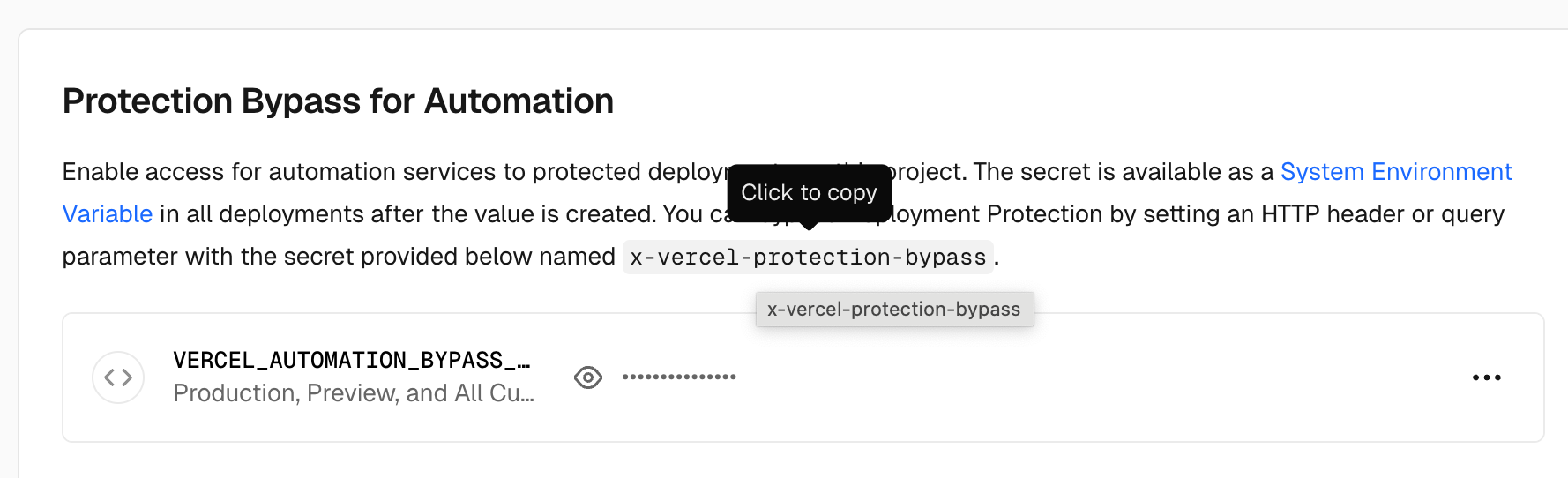
3. Below the **Vercel Authentication** section you will see a **Protection Bypass for Automation** section.
4. Click on **Add Secret**, then on **Save**, Vercel will generate a secret for you.
5. After that copy the secret to your clipboard.
6. Go to the Wundertest Settings
7. Under Headers add a new header with the name `x-vercel-protection-bypass` and the value being the protection bypass secret you copied from Vercel
You can learn more about creating protection bypasses in the [Vercel
documentation](https://vercel.com/docs/security/deployment-protection/methods-to-bypass-deployment-protection/protection-bypass-automation).
## Tutorial Video
## How It Works
1. When Vercel completes a deployment, it triggers a `deployment_status` event in GitHub
2. The workflow checks if the deployment was successful
3. If successful, it runs Wundertest tests against the preview URL
4. The `--base-url` parameter tells Wundertest to use the Vercel preview URL as the base for all tests
5. On Pull Requests it will show a status for Wundertest tests